In this topic, you will be introduced to further uses of Microsoft word in word processing. Topic 3 focusses on Mail Merge, Desktop Publishing and Tests Forming using Microsoft Word software.
MAIL MERGE AND ITS APPLICATION
TheUse of Mail Merge in Word Processing
Normally in typing, letters need to be typed a few times even if the contents are the same. In mail merge, one database will be ceated containing the information fields and merged with the typed letter. With this method, one letter with the same content can be sent to the various recepients recorded in the said mail merge database.
Producing a Document using the Mail Merge Feature
Creating a Document
Make a new file using the instructions File>New on the menu bar and subsequently type a letter for mail
Ensure that you have allocated the required space to insert the addresses of the recipients of the
Save the file using an appropriate
DESKTOP PUBLISHING
Types of Desktop Publishing
Microsoft Word has prepared four templates for desktop publishing that are adaptable. The Template can be opened through the menu bar File>New and click General Templates on the menu New from templates. You can also make your own templates.
Principles of Desktop Publishing Design
Interface and Column
Brochures are usually made in the form of columns that can be folded into two or three. This form is so designed to facilitate the easy reading, remembering and saving of the recipient of the information. It is also user friendly. Microsoft Word also has the facility to make more than one column in the document. The use of columns will make the brochures more readable and neat.
Making documents with columns
Make a new file using Microsoft
Change the document orientation from portrait to landscape to get a brochure with three To change it, use the instruction File>Page Setup in the menu bar and the Page Setupwill be displayed.
In this topic, you will be introduced to the Word Processing software. This refers to the software used in designing, processing, sorting and forming a text, saving and printing a document. The Word Processing software includes Microsoft Word, Word Star, Word Perfect and Chiwriter. The Microsoft Word software uses Graphic User Interface (GUI); with this, the use of computer is easier and user friendly.
The word processing software has a number of attributes in the preparation of a document, including:
Layout and arrange documents more attractively
Search texts for editing
Cut, copy and paste text
A safer document saving system
Making Header and Footer
Making tables and Index
Spelling and grammar check
Using the thesaurus
Merge image and text
Insert graphic and objects
Form letters that can be combined with list of addresses
Format documents automatically from the format gallery
Preview documents before printing
Microsoft Word is a complete word processing software package with facilities to produce quality text elements. This software also allows other supporting elements to be integrated together. Microsoft Word combines various features such as editing, layout, printing and overall distribution besides being user friendly.
Microsoft word software can be started through the Start button at the bottom left corner of the screen. The following instructions can be followed to start the software:
Page Layout
Once the Microsoft Word software is opened, the screen will show the following display and a few main menus will guide and facilitate you in your word processing work.
File Menu
This menu contains all the instructions pertaining to file management or document building as in opening of a new file, opening and closing a file, saving a new and old file, displaying and printing file contents or a document.
Edit Menu
This menu contains all the instructions. Pertaining to file modifications such as copying, pasting text, searching for specific word in files and others.
View Menu
This Menu contains all the instructions pertaining to the display of file or documents on the screen. In addition to that, it also displays Microsoft word interface display options.
Insert Menu
This menu contains all the instructions pertaining to the process of adding elements into a file or document that is constructed. You can add fields, symbols,images to name a few. Various kinds of attractive documents can be produced.
Format Menu
This menu contains all instructions in relation to the process of modifying a text which is typed in a file or document like the type and length of the text, line spacing and others. It also can modify the orientation and specifications of the text produced.
“Information Technology (IT) has changed and continues to change the way we live, do business, and interact socially. IT is undergoing rapid changes. New and improved technological advances appear almost daily.” (Grant, Malloy, & Murphy, 2008) .
• The impact of IT in educational institution both in it’s management as well as in teaching and learning is widespread.
• Thus we as educators, as change agents; in keeping up with the world of present generation, as well as for our own professional growth, need to be aware of the latest developments in IT.
History of Computer Generations
1. Early Contributions before 1940
Have you ever heard of the abacus? As a teacher, you must have been exposed to the intentions of the Education Ministry to implement this method of calculations in schools. The history of the first computer started with the use of the Abacus, as a calculator some 3000 BC ago. In 1617, John Napier invented Napier Bones. Prior to this, he invented logarithms to simplify mathematical operations. Pascal, a French mathematician invented the first mechanical calculating machine known as Blaise Pascal in 1964 and that was the turning point for the invention of calculators.
2. First Generation(1940-1958)
In the second generation computer, the vacumm tube has been changed to a transistor. As a result of the use of the transistor, the computer has physically become smaller, increased its speed and reduced its energy efficiency while still having great potential.
This change has reduced the cost of computers. More than 17000 IBM computers have been marketed between the years 1959 to 1963. Among the famous computers are IBM 1620 and IBM 1401. In this generation, computers have started using magnetic tapes for storage. The programming languages used are FORTRAN and COBOL.
3.Third Generation (1964-1980)
In the third generation of computers, transistors were replaced with Integrated Circuits or chips. On the other hand, the magnetic coil had fully replaced the perforated card as an external hard disk. As a result of the use of the Integrated Circuits, the following computers were invented:
In 1971, Dr Ted Hoff invented the Intel microprocessesor
In 1975, the first local area network yang pertama telah was introduced by Robert
The first Appel computer was invented in 1976 by Steve Woziniak and Seve
In 1977, Apple II was
Intel invented the computer 8086 in 1978, then it was replaced by 8088 in
4. Fourth Generation (1980-Today)
The fourth generation computer has used the integrated circuits. Intel has introduced the microprocessessor 286 in 1982 and todate, Intel has used Pentium Centrino. In 1984, Macintosh was introduced. In May 1991 Microsoft Incorporated has introduced operating systems known as Windows 3.0, subsequently in early 1992, Microsoft introduce the new version of Windows 3.1. Windows 3.0 and 3.1 graphics and DOS.
Instructional control systems of Windows 3.0 dan 3.1 uses the mouse to choose interactive icons. The Windows operational systems have grown and Windows XP which was launched on 25 October 2001 can combine all media in multimedia.
Education
In the education field, the use of IT can be divided into two categories:
Management Tool
There are a lot of data that have to be managed in an educational organisation. Among them student data, finance data, human resources data, stock data and others. IT with the application of the database system and Local Area Network can manage data systematically and efficiently. For instance, with the help of this system, an administrator will be able to know the studentÊs disciplinary status quickly.
He only needs to enter the matriculation card number of the student into the computer connected to the network of student database. The same goes for other important information too for example finance, stock and human resources.
The Internet is a combination of words inter and networking, that is the Internet or between networking. The Internet is also known as the Net, which is a computer network that connects millions of computers all over the world.
The Internet is like a huge electronic city. Each citizen owns an Internet Address that can exchange information or news.
As its nature is like a space similar to the hemisphere, the Internet is known as cyber space.
When the computer is connected to the Net, it is like a spider in the centre of a huge web. All the spokes of the web can furnish information from other computers.
After that, the Internet is used by a group of academicians from UCLA for the research and development of technology. In early 1990, America allowed the use of the Internet for commercial reasons. The history of the Internet can be seen chronologically in Table 7.1 below.
Communication Protocol
The Internet is a communication system that uses the physical connection (usually the telephone lines) to connect computers to the computer netwwork. The Internet uses a standard communication procedure to communicate with other computers.
The Internet is also known as a packet switch network because each data that passes through it will be broken into smaller packets. Each packet is sent separately through a series of switches that is called a router. As soon as they reach their destination, the packet is combined into one as its original form. TCP dan IP are two protocols that aim to break the data into packet, to direct them through the Internet, and then combinining them again when they it reach the desired destination.
Types of Pathway
The types of pathway that are given by the internet provider are as follows:
IP (Internet Protocol) Connection
If we want to connect all our hardware and software or access the Internet, the we have to use the IP (InternetProtocol) address.
Dial UP Connection
If we use the modem to dial up to ISP to connect to the Internet, then it is known as the Dial UP access.
THE USE OF THE INTERNET IN EDUCATION
The Internet uses a variety of media in its application. Hence the information in the Internet is more open and wide in nature and not confined to only one location. In fact it covers the whole world. The Internet is a useful tool in assisting educators to vary their teaching and learning aids to a more interesting media. Accessing into this vast resource provides a venue for teachers and students to obtain inforation needed. The Internet service definitely provides a more thorough and complete source of reference.
The Internet services also provides a wide variety of resources for educatin. The Internet is seen as a warehouse of information that can be accessed from a distance. This resource is not only suitable for individuals but also as a group or as a teaching aid in educational institutions.
Internet access can make communication with people all over the world a reality and even bring the educational experts to the classrooms.
The Internet has been used as a source to obtain various materials and information related to teaching and learning. It also serves as a useful means of communication among teachers, between a teacher and a student, and among students themselves.
The Presentation of Information a. Projects b. Lesson Plans c. Interesting and Latest Information d. Reading Material and Language Skills e. Information Sharing The Searching of Information Fastest and cheapest way to search for information through search engines & portals such as: - Google Scholar - Educational database The use of USENET, FAQ, the email discussion field and the archive sites can be
used as additional sources
Teaching and Learning
Internet connection: types of pathways: i. IP connection ii. Dial up connection iii. ISDN, B-ISDN iv. T -1 Lines v. T -3 Lines vi. Broadband: DSL, ADSL, Cable vii. Wireless Connections/Wireless Broadband
• The development of the course software has to be done carefully by following the procedure so that it achieves the objective of the course and user.
Analysis
• The aim of developing the course software
• For whom is it developed
• Teaching objective
• The lesson content needed to achieve the objective
• Students’ previous knowledge
• Lesson strategy
Design
• Creation of a detailed storyboard: for screen content, screen layout and connection between screens
• Screen determine the navigational manner: linear or in branches
Development
• Production of elements that are determined in the layout.
• Prepare technical documentation and user guideline
• Ongoing evaluation: correct all weaknesses and mistakes before implementation.
Implementation
• User trainings including teachers and students
• Guidelines to teachers to develop their confidence
• Prepare teaching and learning material in working order, prior to delivering the CATL to teachers and students
Evaluation
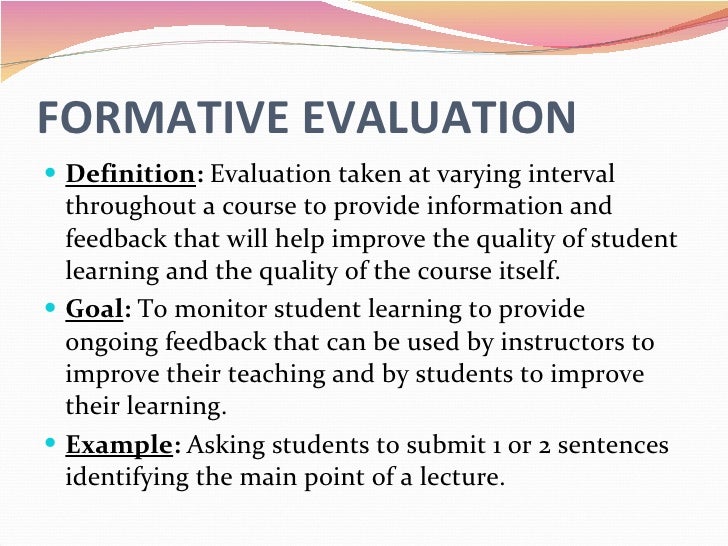
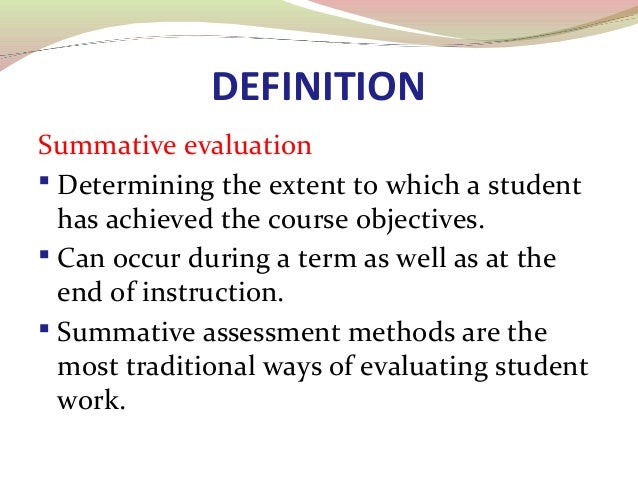
Two types of evaluation: Formative & Summative
• Formative Evaluation: done at every ADDIE stage to ensure the course software developed conforms to the wishes and objective of the development
Summative Evaluation: to ensure the learning objectivs achieved by students. This evaluation gives feedback to the effectiveness of the course software produced.
Questionnaire method: to get opinions of students about various aspects of the course software. E.g: navigation, user friendliness and use of elements in delivering the course content.
Evaluation on the CATL software is important because it can ascertain its effectiveness in teaching and learning.
Although the evaluation of the CATL software needs time to carry out, it is vital to ensure that only the right software is used in schools to achieve the set objectives. Failure in evaluation will result in the failure in implementing the CATL course software optimumly.(Shaifol, 2003).
Evaluation has to cover a number of aspects so that its weaknesses can be identified and and an accurate selection is carried out. The aspect that is evaluated depends on the reasons for evaluation. Evaluation is done to:
Measure Suitability
When you measure the softwareÊs suitability for teaching and learning, it will help you to make a right selection. You have to take into consideration whether the software can help them achieve the learning objective, whether it is easy to use and if the software will interest the students.
As a consumer, the students participation is important so that they can make accurate conclusions and not based on assumptions. Evaluation is also focussed on the advantages of the software over other ordinary methods, extra material that needs to be prepared by students and if the teacher can have more time to interact effectively with other students.
Giving Feedback
This entails giving feedback to the designer and creator of the software. The software developer is more interested in technical matters such as:
Error
Navigation
Font Size
Arrangement of elements into one screen
Graphics layout
Video and audio publishing
The Criteria for Selection
In making the selection of course software, you have to make sure it qualifies all the important criteria. There are a number of methods that can be used to evaluate a course software such as:
The Learning Object Review Instrument (LORT) suggested by E-Learning Research and Assessment Network,
ESL Software Evaluation Form suggested by Robb, (1996).
Buyers Worksheet suggested by Planning and Evaluation Service, S. Department of Education (2002).
Refer to Fig 9.1. We will discuss various criteria suggested by Evalutech in this sub topic. Evalutech is an initiative under the cooperation between NorthCarolinaDepartment of Public Instruction and Southern Regional Education Board.
Word Processing, electronic spreadsheet and database are important tools to assist you and students in teaching and learning.
This software application is used in various subjects and situations. The use of word processing (such as MS Word) is appropriate in language subjects and to produce activity reports on projects. Presentations on projects can be done using the presentation application (such as MS PowerPoint).
In this topic, you will learn about integrating the software application into teaching and learning. To do this, the teacher needs to have skills in conducting Information Technology and also a change the functions of a teacher and students.
Opinions on the Use of IT in Education
TheEffects on the Functions of the Teacher,Student and the Classroom
The integration of IT in educaton has a great impact on the functions of the teacher, student and the use of space in the classroom. The teacher cannot remain as an imparter of knowledge as information technology allows the latest information to be accessed easily. This causes changes in learning activities. Now we will discuss the functions of the teacher, student and the classroom.
The function of a teacher
The teacher plays an important role in teaching and learning. Below are the functions of a teacher.
Standard Characteristics of Teachers and Students from the Aspect of IT Application
To carry out IT integration in teaching and learning, the teachers have to equip themselves with the skills to use technology.
International Society for Technology in Education (ISTE) has drawn a few useful guidelines for teachers in the National Educational Technology Standards for Teachers (NETSoT). There are 23 guidelines that are categorized into six, and they are:
Operation and Technology Concept
Teachers must have the knowledge, skills and basic understanding related to technology and are able to increase their information according to their needs and the development of technology.
Planning and Developing a Learning Environment and Experience
Teachers should know how to plan and use technology to meet the needs of a variety of studentsÊ learning ability as well as identifying and evaluating learning resources.
Teaching, Learning and the Curriculum
Teachers implement the curriculum including the various technology based methods and strategies to improve learning.
Testing and Evaluation
Teachers vary testing and evaluation strategies including the analysis and interpretation of data collected.
Productivity and Professionalism
Teachers use technology to increase professionalism and continuous learning and the use of resources to enhance skills in teaching and learning.
Social Issues, Ethics, Law and Humanities
Teachers understand social issues, law and humanities to create a conducive and safe environment for students from all walks of life.
ISTE also outlines six categories of skills that students need to master to prepare them for working life, which are:
Creativity and Innovation
Students should show thinking skills creatively, increase knowledge, create products and processes using technology.
Communication and Collaborative
Students have to use digital media, the environment and even through distance learning to communicate and cooperate so as to contribute to other students.
Research and Information Usage
Students use technology to access, evaluate and use information.
Creative Thinking, Problem Solving and Decision Making
Students use critical thinking skills to plan and carry out research, manage projects, solve problems and make decisions using technology and digital resources.
Digital Citizens
Students understand culture, communal issues related to technology, law and ethics.
Operation and Technology Concept
Students understand the concept, system and technology operation including the use of technology that are suitable and effective